
How to Increase AOV on Shopify: Practical Strategies, Apps, and Implementation
Learn how to increase average order value on Shopify using product bundles, upsells, discounts, and recommendations. Includes Shopify apps, implementation examples, and CRO measurement.
Last updated:
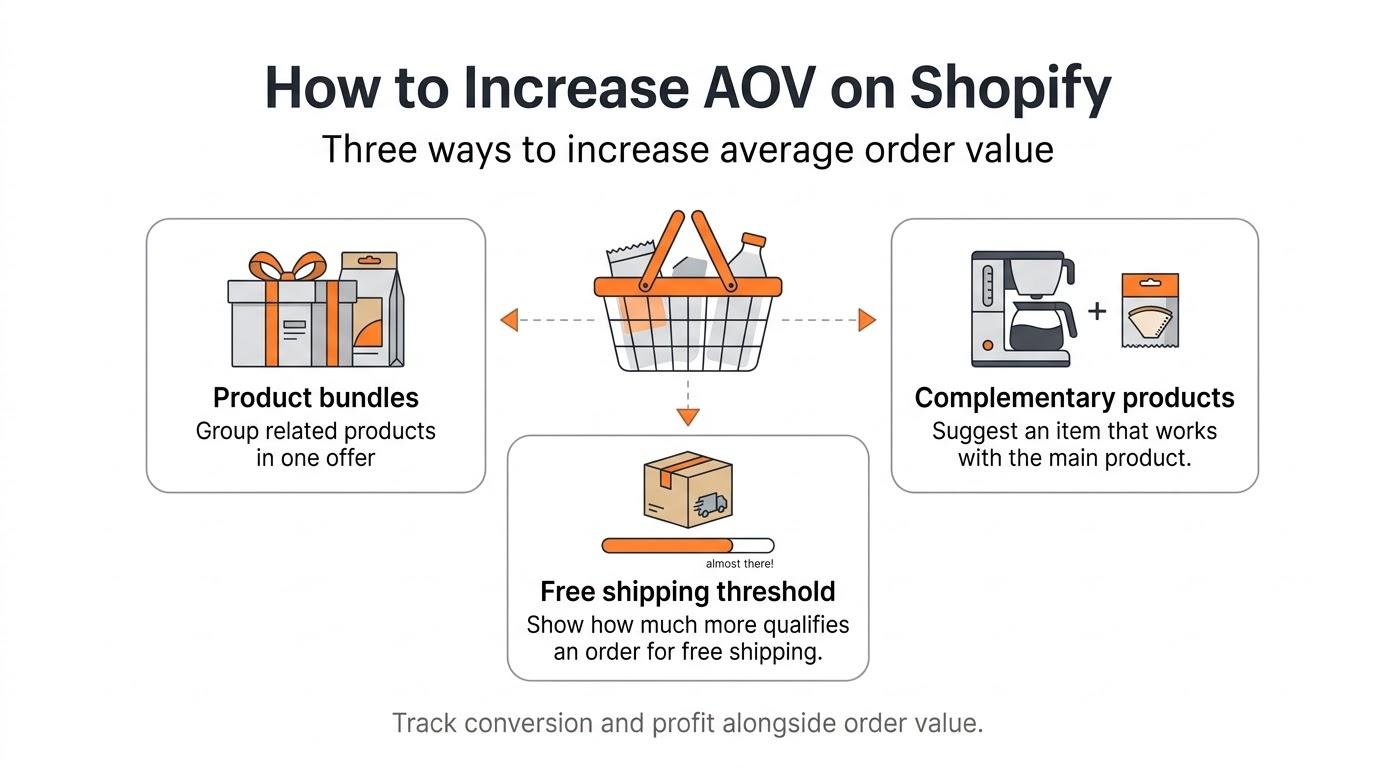
Increasing Average Order Value (AOV) means increasing the amount customers spend on each order.
There are different ways to do this on Shopify. You can create product bundles, recommend complementary products, offer volume discounts, add upsells in the cart, or provide additional services such as gift wrapping and engraving.
But not every strategy makes sense for every store.
Suppose you sell skincare products. Recommending a moisturizer to someone purchasing a face cleanser might be useful because both products can be part of the same routine.
On the other hand, showing five unrelated products before checkout may create unnecessary distractions. Even if some customers purchase more, others might leave without completing their orders.
For this reason, I recommend treating AOV optimization as part of your overall conversion rate optimization (CRO) strategy.
In this article, we will discuss different ways to increase AOV on Shopify, how you can implement them using native features or marketplace apps, and when custom Shopify development makes sense.
What Is Average Order Value in Shopify?
Average Order Value represents the average product value of orders placed on your store.
Shopify calculates AOV in its Sales Reports using:
AOV = (Gross Sales − Discounts) ÷ Number of Orders
This calculation excludes taxes, shipping, and adjustments made after an order was originally placed, such as certain edits and exchanges.
Suppose your store receives 100 orders with $10,000 in gross product sales and $1,000 in discounts.
Your AOV would be:
($10,000 − $1,000) ÷ 100 = $90
This is only a mathematical illustration, not data from an actual Shopify store.
You can find AOV information in Shopify Admin under Analytics → Reports, including the Average order value over time report.
Official reference: Shopify Sales Reports.
Does Increasing AOV Always Increase Profit?
No.
AOV measures the value of orders, but it does not tell you how profitable those orders are.
Suppose you introduce a free shipping offer and customers begin purchasing additional products to qualify.
Your AOV might increase, but you also need to pay for shipping, product costs, payment processing, and any discounts.
If these additional expenses exceed the profit generated by the extra products, the strategy may actually make your business less profitable.
This is why I recommend tracking AOV along with conversion rate, revenue per visitor, and profit per order.
1. Create Product Bundles
Product bundling is one of the first strategies I would consider for stores that sell complementary products.
A bundle combines multiple products into one offering.
Suppose you sell baby products. Instead of selling a blanket, rattle, and baby book separately, you can create a gift hamper that contains all three products.
Customers who originally intended to purchase only one product might prefer the complete gift set.
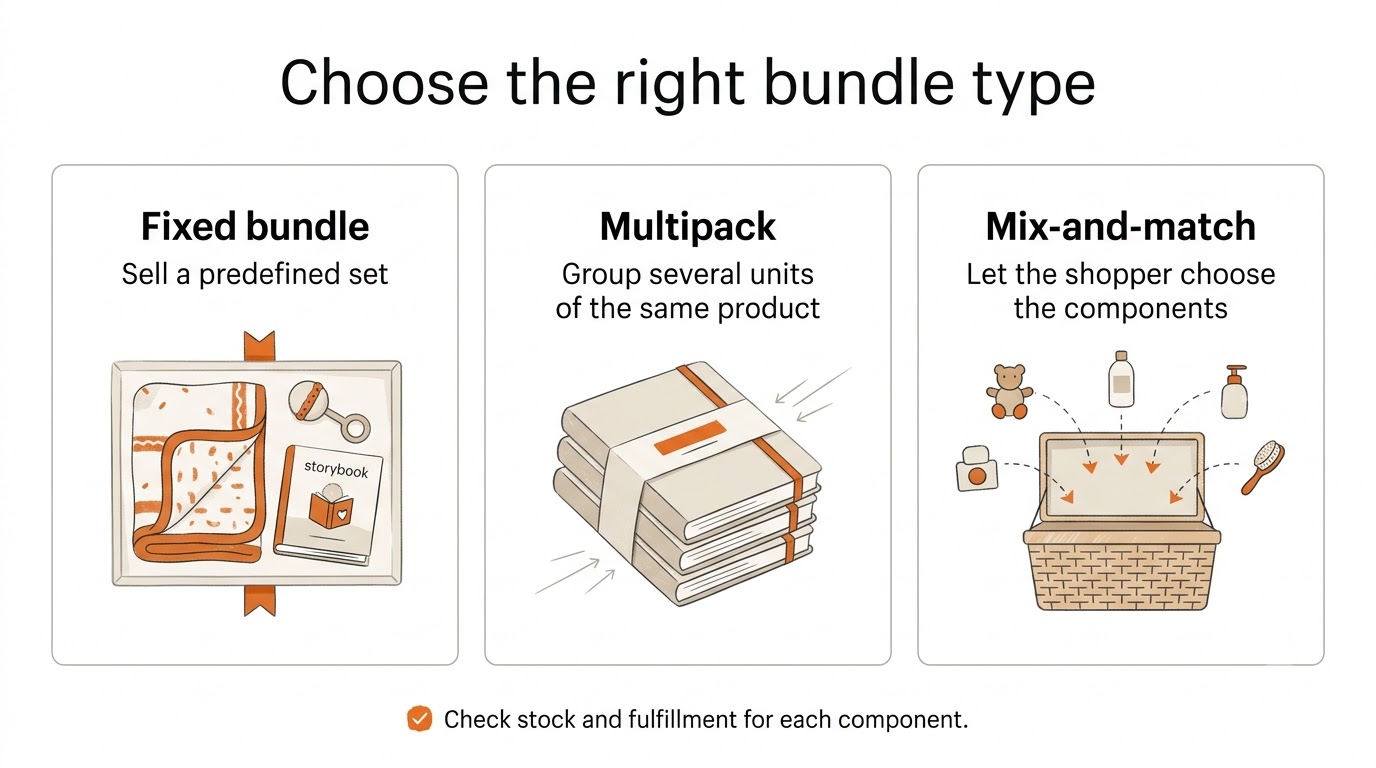
There are different types of bundles.
Fixed bundles: A predefined set of products that customers purchase together.
Multipacks: Multiple quantities of the same product sold together.
Mix-and-match bundles: Customers select products from a collection to create their own bundle.
How to Implement Bundles in Shopify
For fixed bundles, I recommend starting with Shopify Bundles, Shopify's free first-party app.
It allows you to create fixed bundles and multipacks using products already available in your store.
Shopify tracks the underlying component inventory, which is important when the same product is sold separately and as part of a bundle.
However, Shopify Bundles does not provide a general-purpose mix-and-match bundle builder.
If customers need to select different products for their hamper, you can evaluate apps such as:
These apps offer additional bundling and discount options. Check the current subscription plans and supported features before installing them.
When Is Custom Bundle Development Required?
Sometimes store owners need bundle functionality that existing apps do not support.
For instance, a gift hamper website might require customers to choose products according to age group, packaging type, delivery occasion, and available inventory.
The final price could depend on the products selected, while each component needs to remain visible in fulfillment records.
In such cases, a custom Shopify product configurator may be necessary, potentially using Shopify’s Cart Transform functionality where eligible.
My recommendation: Start with Shopify Bundles for fixed sets. Use an existing bundle app for standard mix-and-match requirements. Consider custom development when you have specific configuration, inventory, or integration needs.
2. Add Complementary Product Recommendations
Another way to increase AOV is to recommend products that customers might need alongside their original purchase.
This is commonly called cross-selling.
Suppose a customer is purchasing a camera. You might recommend a compatible memory card, camera bag, or tripod.
The main idea is to show products that are actually useful with the selected item.
Using Shopify Search & Discovery
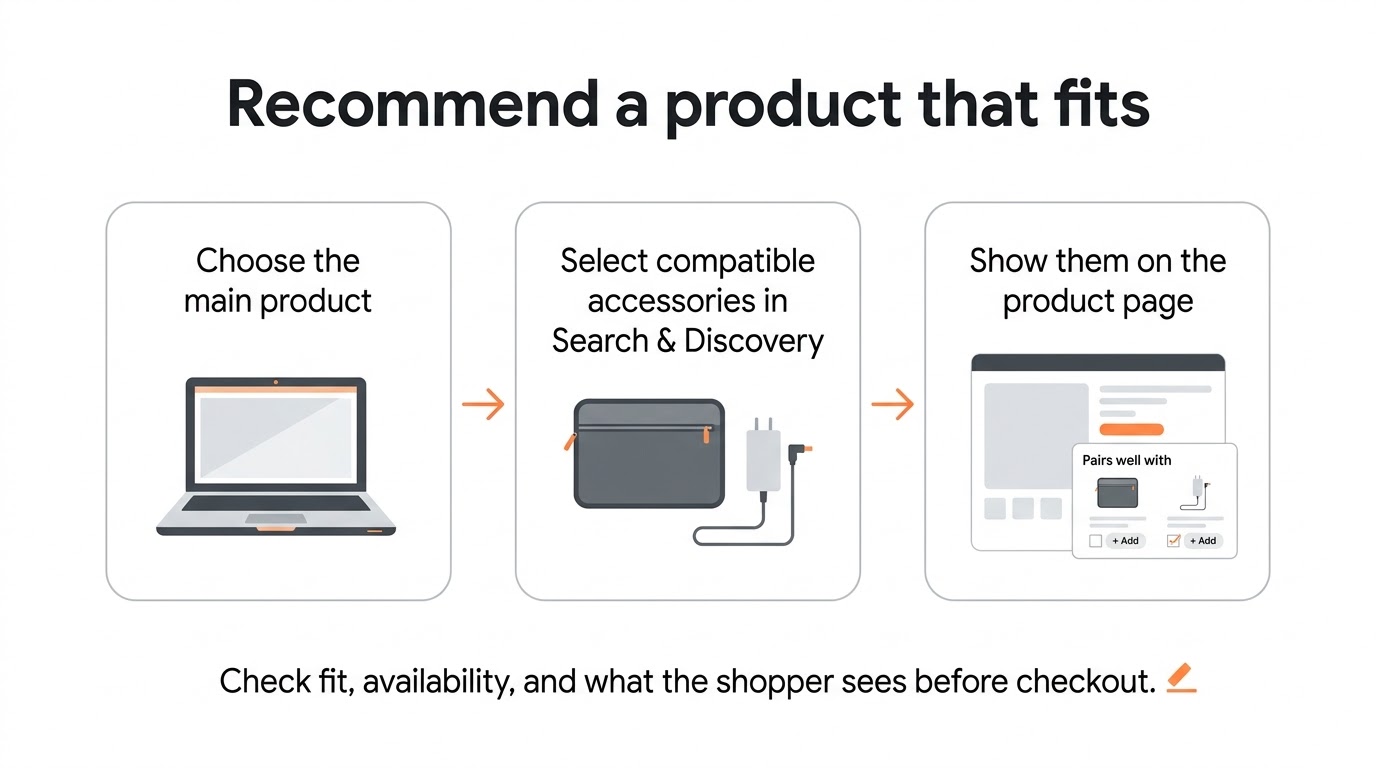
Shopify provides a free app called Shopify Search & Discovery.
You can use it to configure related and complementary products.
Related recommendations can be generated automatically or adjusted manually. Complementary recommendations are configured by selecting products that should appear alongside a particular product.
For most stores, I recommend manually configuring complementary products for important products first.
If you sell a laptop, you probably already know which accessories are compatible. You do not necessarily need an AI recommendation engine to make that decision.
Technical Implementation: Displaying Complementary Products
Shopify also provides a Product Recommendations API that developers can use to load product suggestions.
The following is an example of a Shopify Liquid section for displaying complementary products.
Create the section and both assets shown in the file tabs. Then add the section to a product template and configure complementary products in Search & Discovery.
{% if product != blank %}
  {{ 'complementary-products.css' | asset_url | stylesheet_tag }}
  <script src="{{ 'complementary-products.js' | asset_url }}" defer></script>
  <sf-complementary-products
    class="sf-complementary-products"
    data-loaded="{{ recommendations.performed }}"

    id="Recommendations-{{ section.id }}"
    data-recommendations-url="{{ routes.product_recommendations_url }}?section_id={{ section.id }}&product_id={{ product.id }}&limit={{ section.settings.limit }}&intent=complementary"
  >
    {% if recommendations.performed %}
      {% if recommendations.products_count > 0 %}
        <section aria-label="{{ section.settings.heading | escape }}">
          <h2>{{ section.settings.heading | escape }}</h2>

          <div class="sf-recommendations">
            {% for recommended_product in recommendations.products %}
              <article class="sf-recommendation">
                <a href="{{ recommended_product.url }}">
                  {% if recommended_product.featured_image %}
                    {{
                      recommended_product.featured_image
                      | image_url: width: 600
                      | image_tag:
                        loading: 'lazy',
                        widths: '200, 400, 600',
                        sizes: '(min-width: 750px) 220px, 45vw'
                    }}
                  {% endif %}

                  <h3>{{ recommended_product.title | escape }}</h3>
                </a>

                <p>{{ recommended_product.price | money }}</p>

                <a href="{{ recommended_product.url }}">
                  View product
                </a>
              </article>
            {% endfor %}
          </div>
        </section>
      {% endif %}
    {% endif %}
  </sf-complementary-products>
{% endif %}

{% schema %}
{
  "name": "Complementary products",
  "settings": [
    {
      "type": "text",
      "id": "heading",
      "label": "Heading",
      "default": "Pairs well with"
    },
    {
      "type": "range",
      "id": "limit",
      "label": "Number of products",
      "min": 1,
      "max": 10,
      "step": 1,
      "default": 4
    }
  ],
  "presets": [
    {
      "name": "Complementary products"
    }
  ]
}
{% endschema %}
This section uses Shopify's recommendations endpoint to retrieve the products configured in Search & Discovery.
Once added to a product template, it can display complementary products without requiring a paid recommendation app.
The example links customers to the recommended product rather than automatically adding it to the cart. This is intentional because products with multiple variants may require additional selection before they can be purchased.
Implementation note: This section loads its own recommendations and links to each product. Test it with a configured product and one with no recommendations. Open the Theme Editor and confirm the section can be removed and added again. Match the spacing and card styles to your theme.
Official reference: Shopify Product Recommendations API.
3. Add Upsells to Product Pages and Cart Drawers
Upselling means encouraging customers to purchase a higher-value version of a product or add an upgrade.
For instance, suppose you sell wireless headphones with a standard version and a premium version that includes additional features.
You can show the premium option directly on the product page and explain the differences.
This is different from cross-selling, where you recommend complementary products.
Technical Implementation: Sticky Add to Cart
A sticky bar keeps the original purchase action within reach after the shopper scrolls past it. It can also help shoppers return from an upsell or a long product description without losing their selection. Measure conversion separately from AOV when testing it.
Create the three files in the tabs. In the main product section, render the snippet outside the product form with {% render 'sticky-add-to-cart', product: product, product_form_id: product_form_id %}. Use the same form ID variable that the theme passes to its product form. The example targets a Dawn-style submit button with type="submit" and name="add". Adapt that selector and the button translation key if your theme uses different markup or locale keys.
{{ 'sticky-add-to-cart.css' | asset_url | stylesheet_tag }}
<script src="{{ 'sticky-add-to-cart.js' | asset_url }}" defer></script>

<sf-sticky-buy
  class="sf-sticky-buy"
  data-form-id="{{ product_form_id | escape }}"
  hidden
>
  <span class="sf-sticky-buy__title">{{ product.title | escape }}</span>
  <button type="button" data-sticky-submit>
    {{ 'products.product.add_to_cart' | t }}
  </button>
</sf-sticky-buy>
The sticky button clicks the theme's original submit button, so the existing form supplies the current variant, quantity, selling plan, and line item properties. The theme also keeps control of validation, cart drawer updates, and errors. Test sold-out variants, rapid variant changes, subscription selections, and required personalization fields. Check that the bar leaves enough room for mobile navigation and cart controls. See Shopify's product form guide.
Cart Drawer Upsells
A cart drawer is another place where you can show relevant product recommendations.
Suppose a customer adds a pair of shoes to the cart. You might recommend shoe cleaning products before they proceed to checkout.
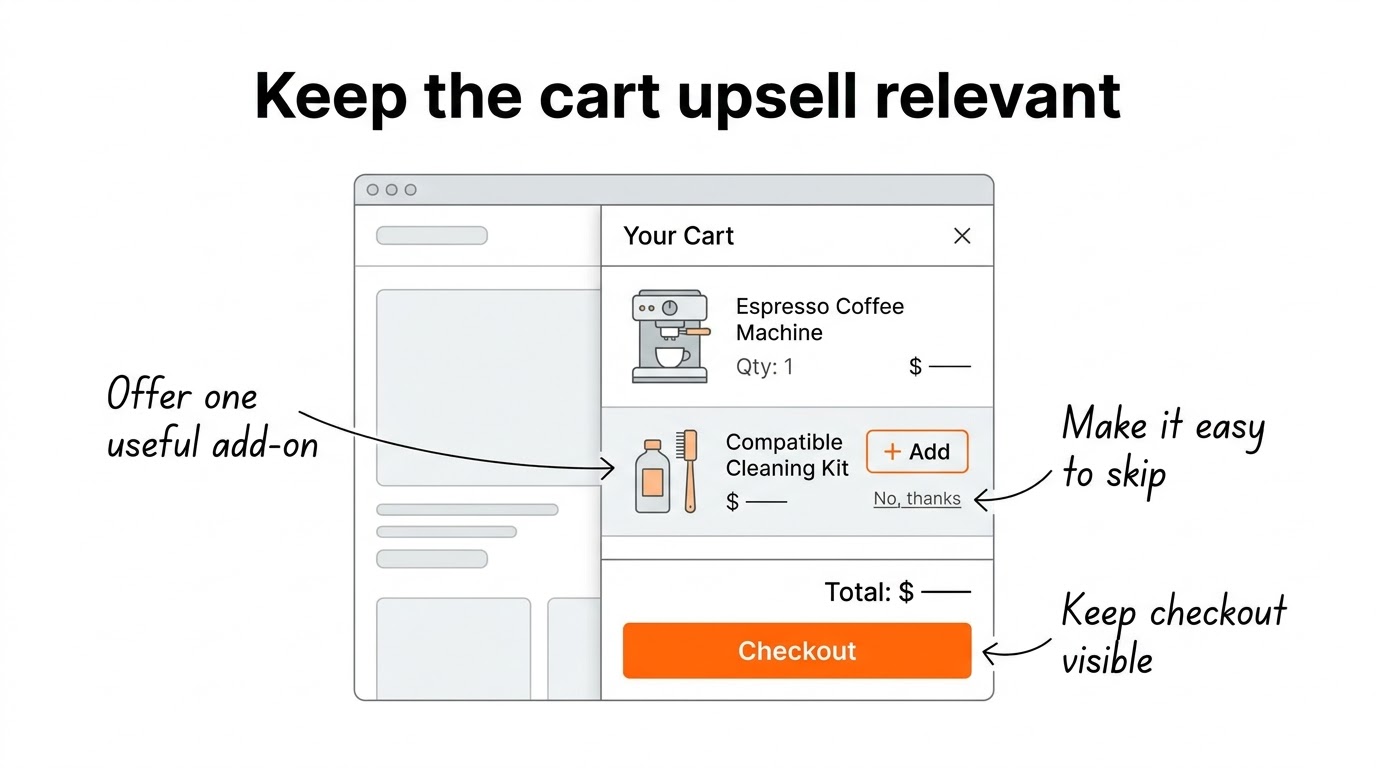
Many Shopify themes already include cart drawers, but they do not all provide configurable upsell blocks.
You can use existing apps such as:
You can also build a custom cart upsell interface using Shopify's Ajax Cart API.
The benefit of custom development is that you can decide exactly how recommendations appear and interact with your existing cart.
But this requires careful theme integration. When a product is added, the cart count, subtotal, cart drawer, and any free shipping indicators should all display updated information.
I would not recommend adding a separate paid app for every small cart feature. First check whether your existing theme or an already-installed app can support the requirement.
4. Use Free Shipping Thresholds
Free shipping thresholds encourage customers to reach a certain order value to qualify for free delivery.
Suppose your store charges shipping for orders below $75 and offers free shipping on eligible orders of $75 or more.
A customer with $65 in eligible products might add another item instead of paying the shipping fee.
This is a hypothetical illustration; it does not mean $75 is the right threshold for your store.
How to Set Up Free Shipping in Shopify
You can configure price-based shipping conditions in Shopify Admin → Settings → Shipping and delivery.
Another option is creating an eligible free shipping discount through the Discounts section.
Before setting your threshold, review your shipping costs, product margins, customer locations, and typical order values.
I recommend checking the actual distribution of your orders rather than choosing a threshold based on an arbitrary percentage above AOV.
What About Free Shipping Progress Bars?
A progress bar can show customers how close they are to a free shipping threshold.
For instance:
"Add $10 more to qualify for free shipping."
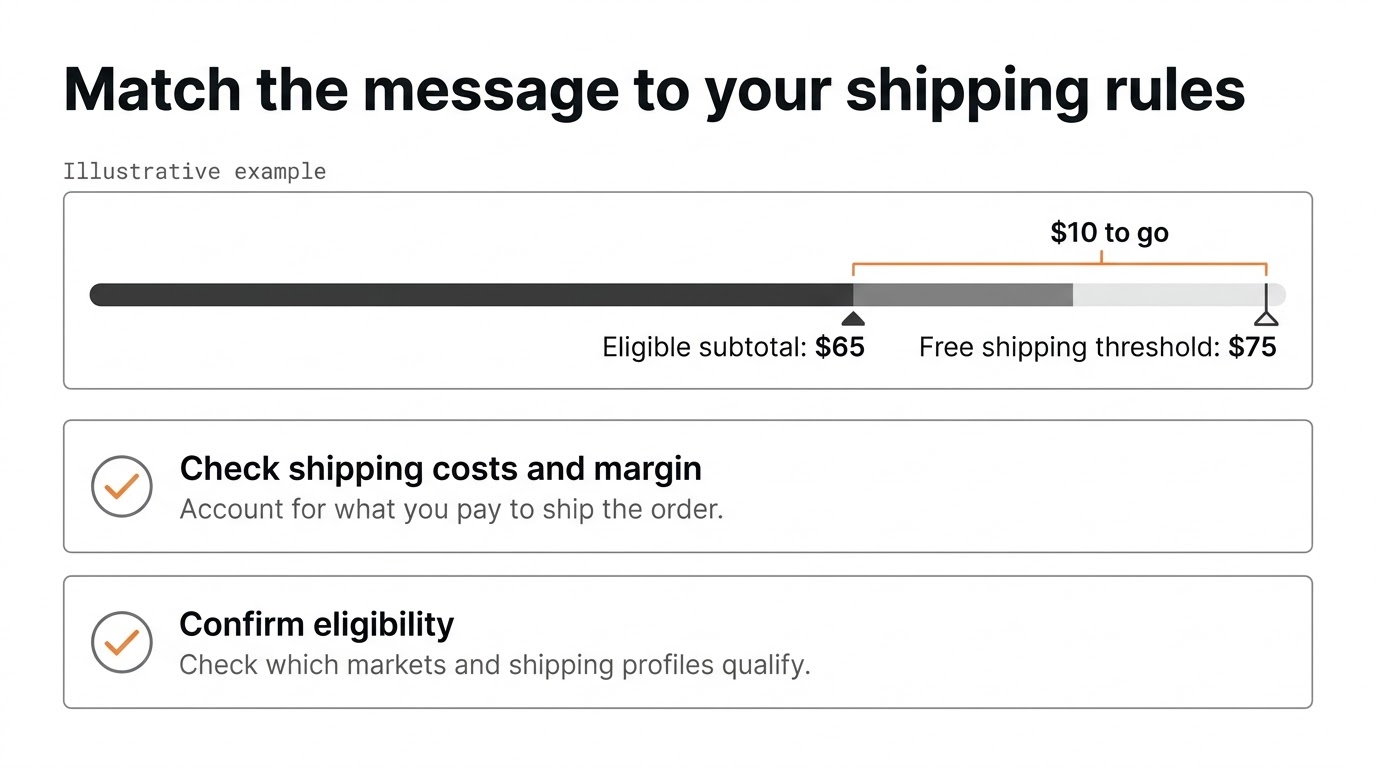
This can be implemented using a Shopify cart drawer app or custom theme code.
However, a progress bar should reflect the same conditions as your actual shipping rules.
If your store uses multiple shipping profiles, different markets, or shipping rates based on product type and delivery location, you should not assume the cart subtotal alone determines eligibility.
Otherwise, the progress bar might promise free shipping to a customer who does not actually qualify at checkout.
My recommendation: Use a simple progress bar only when you can reliably match its logic to your shipping configuration. For stores with complex shipping rules, use an app or custom implementation that handles those conditions correctly.
5. Offer Volume Discounts and Quantity Breaks
Volume discounts encourage customers to purchase more units of the same product.
This approach can work well for products customers regularly consume, such as skincare, stationery, cleaning supplies, and other everyday products.
Suppose you sell notebooks. You could offer a discount when customers purchase three notebooks instead of one.
But the discount needs to make sense financially.
Native Shopify Discounts
Shopify's discount settings support purchase conditions, including minimum quantities for eligible discounts.
For standard quantity-based offers, check native discounts before using a third-party app.
If you want a more advanced interface showing different quantity tiers directly on the product page, you can evaluate apps such as:
For stores with complicated discount rules, Shopify Functions may be relevant.
Shopify Functions allow eligible apps to execute supported backend commerce logic on Shopify's infrastructure. However, there are restrictions on deploying custom Function apps depending on the Shopify plan.
It is also important not to confuse Cart Transform with Discount Functions. Cart Transform handles supported cart line transformations, while Discount Functions are designed for discount calculations.
My recommendation: Use native discounts for straightforward offers. Move to an app when you need several pricing tiers, a product-page quantity selector, or more advanced promotional rules.
Technical Implementation: Product Page Quantity Offer
For a quantity offer, configure a native amount-off product discount with the intended minimum quantity and eligible products first. The product page button below sets the existing quantity field. Shopify applies the actual discount when the cart qualifies.
Create the files in the tabs and render the snippet beside the quantity selector, outside the product form. Pass the exact ID of the theme's existing quantity input, including any section-specific suffix. The input must be a number field named quantity associated with the product form. Render this only on templates or products covered by the configured offer. Keep the text and quantity in sync with the live discount.
{{ 'pdp-quantity-offer.css' | asset_url | stylesheet_tag }}
<script src="{{ 'pdp-quantity-offer.js' | asset_url }}" defer></script>

<sf-quantity-offer
  class="sf-quantity-offer"
  data-form-id="{{ product_form_id | escape }}"
  data-quantity-id="{{ quantity_input_id | escape }}"
  hidden
>
  <p>{{ offer_text | escape }}</p>
  <button type="button" data-offer-quantity="{{ offer_quantity }}">
    Set quantity to {{ offer_quantity }}
  </button>
  <p data-quantity-status role="status"></p>
</sf-quantity-offer>
For example, use {% render 'pdp-quantity-offer', product_form_id: product_form_id, quantity_input_id: quantity_input_id, offer_quantity: 3, offer_text: 'Buy 3 or more to qualify for the quantity offer.' %}. Set quantity_input_id to the ID from your theme's markup. Check that the quantity changes for the selected variant, invalid quantities leave the previous selection intact, and Shopify applies the correct offer at checkout. Test discount combinations and inventory limits before publishing. See Shopify's discount setup guide.
6. Offer Gift With Purchase
Gift-with-purchase offers provide an additional product when customers meet certain conditions.
For instance, a skincare store could offer a free travel-size sample when a customer purchases a particular product combination.
Shopify supports Buy X Get Y discounts that can be configured directly in the admin.
However, there is an important limitation.
Shopify's native Buy X Get Y discount does not automatically add the free product to the cart.
The customer must add the eligible gift product to the cart before Shopify can apply the discount.
If you need the gift to appear automatically, you will usually need a compatible app or custom cart functionality.
Also, check whether the free item can be added when inventory is available and removed appropriately when the order no longer qualifies.
For basic gift offers, native Shopify discounts can be sufficient. For an automatic gift experience, an app is usually a more practical starting point.
Official reference: Shopify Buy X Get Y Discounts.
7. Add Paid Product Customizations
Product customization is another way to increase the value of an order.
Suppose your store sells gifting products. Customers may want to add personalized engraving, premium gift packaging, a greeting card, or other accessories.
These additions can increase the order value while also making the product more useful to the customer.
Shopify provides line item properties to collect information such as engraving text or a personalized message.
However, line item properties do not automatically increase the product's price.
For a paid add-on, you need a supported method to charge for that selection. Depending on the requirement, this could involve an additional product, a variant, or a product options app that supports price add-ons.
Do not only update the price using JavaScript on the product page, because Shopify checkout must still calculate the actual charge correctly.
For simple personalization, I recommend evaluating an existing product options app before building custom functionality.
For advanced product configuration, such as dynamic artwork or manufacturing integrations, custom development may be required.
8. Post-Purchase Upsells
Post-purchase upsells are offers shown after a customer completes the initial payment.
Suppose a customer purchases a coffee machine. A post-purchase offer might recommend a compatible cleaning kit.
This is different from placing an offer inside the main checkout.
Compatible App Store apps can show eligible post-purchase product offers, including on supported non-Plus plans. Check your store and payment setup before choosing an app.
Some apps you can evaluate include:
A limitation is that Shopify allows only one active post-purchase page app at a time.
Post-purchase offers are also subject to currency, payment, and checkout compatibility conditions. These should be checked before installing an app.
I would recommend post-purchase upsells mainly when your products have natural accessories or upgrades.
Forcing another offer after every purchase is unlikely to be a good customer experience.
9. Subscriptions and AI Product Recommendations
Subscriptions and AI recommendations are often promoted as ways to increase AOV, but they do not always increase the initial order value.
Subscriptions
Suppose you sell products customers purchase regularly.
You can offer recurring deliveries through Shopify Subscriptions or a suitable third-party subscription app.
Subscriptions can help generate repeat purchases, but a subscription discount may reduce the amount paid on the first order.
For this reason, subscription performance should be measured using repeat purchase behavior and customer lifetime value, not only AOV.
Also, Shopify's native Bundles and Subscriptions features have compatibility limitations. Do not assume that a standard fixed bundle can automatically become a subscription bundle.
AI Product Recommendations
AI-powered recommendation apps can analyze product information and customer behavior to suggest relevant products.
Some apps, including Wiser, provide automated recommendation capabilities.
But I would not recommend installing an AI app just because it uses AI.
For a small catalog, manually selecting complementary products may be more effective and easier to control.
For a larger catalog with frequent changes, automated recommendations may help reduce manual work.
The important thing is to test whether those suggestions improve actual business results.
An AI recommendation that produces more clicks but fewer completed purchases is not necessarily helping your store.
Which Shopify Apps Should You Use?
Here are some practical options depending on your requirements.
| Requirement | App or tool | My recommendation |
|---|---|---|
| Fixed bundles and multipacks | Shopify Bundles | Start here for standard bundles |
| Complementary products | Shopify Search & Discovery | Best starting point for native recommendations |
| Mix-and-match bundles | Bundler | Evaluate when customers select bundle components |
| Quantity breaks | Kaching Bundles | Useful for tiered quantity offers |
| Cart and product upsells | Selleasy | Evaluate for cross-selling without custom code |
| Automated recommendations | Wiser | Worth testing for stores needing automated suggestions |
| Post-purchase upsells | ReConvert | Evaluate for post-purchase offers |
Shopify Bundles and Shopify Search & Discovery are free first-party apps. Third-party pricing and plan features can change, so check each current App Store listing before installing.
I recommend avoiding multiple apps that perform almost identical functions. For instance, if your existing cart drawer app already supports upsells and free shipping messages, you may not need separate apps for both features.
How to Measure Whether Your AOV Strategies Are Working
After adding a bundle, upsell, or discount, you need to determine whether the change actually improved your store.
Do not evaluate the result using AOV alone.
Track these metrics:
| Metric | What it tells you |
|---|---|
| Average Order Value | Whether the average product value per order increased |
| Conversion Rate | Whether customers are still completing purchases |
| Revenue per Visitor | Whether each visit is generating more revenue on average |
| Units per Order | Whether customers are purchasing more items |
| Contribution Profit | Whether the additional revenue is worth the extra costs |
| Returns and Refunds | Whether customers are keeping the additional products |
An Example of Why AOV Alone Can Be Misleading
Consider two hypothetical versions of the same store receiving 1,000 visits.
Before an upsell:
- Conversion rate: 3%
- Orders: 30
- AOV: $80
- Product revenue: $2,400
After an upsell:
- Conversion rate: 2%
- Orders: 20
- AOV: $100
- Product revenue: $2,000
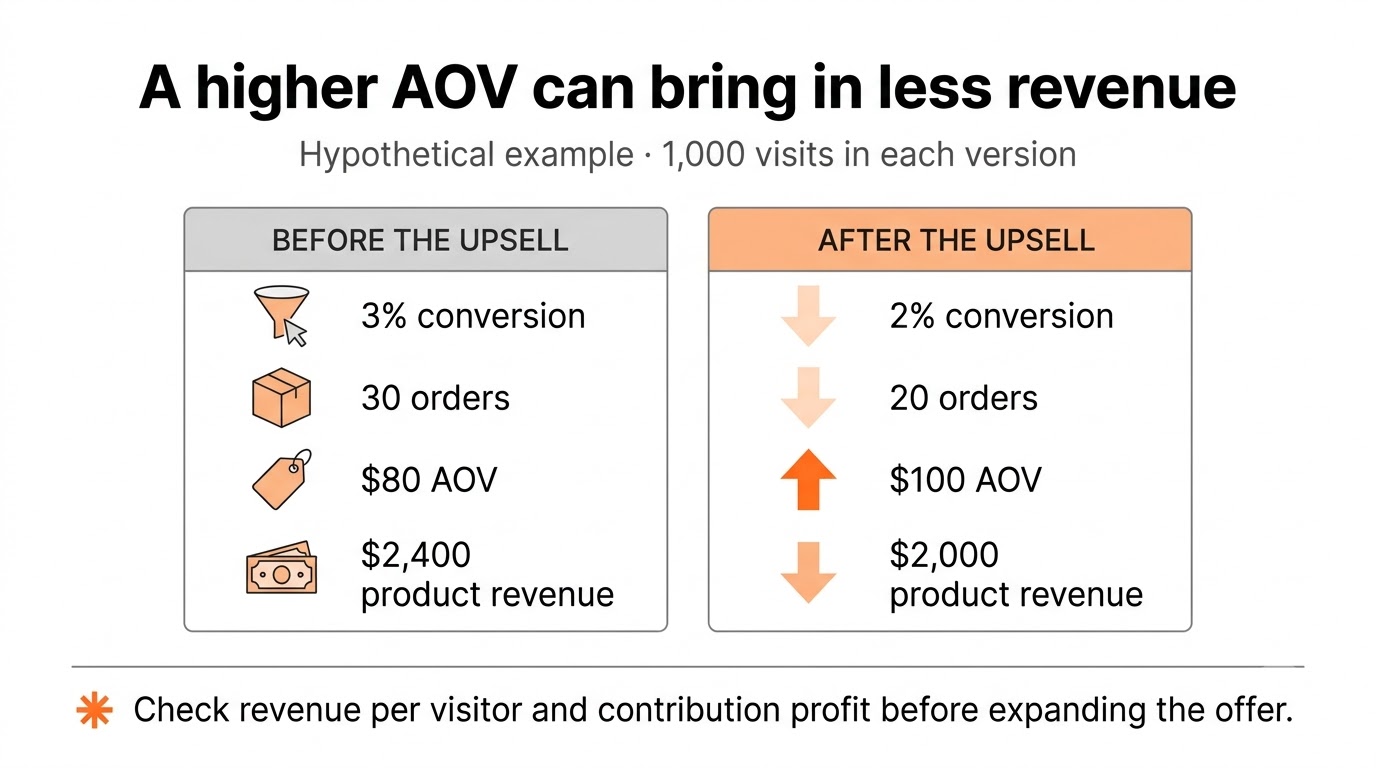
The second version has a higher AOV, but it generates less revenue from the same traffic.
This is why you should examine conversion rate and revenue per visitor alongside AOV.
You should also consider product costs, shipping expenses, and discounts when evaluating profit.
Should You Run A/B Tests?
Yes, when your store has sufficient traffic and an appropriate testing setup.
Instead of comparing a week before installing an app with a week after installing it, you can test different experiences during the same period.
For instance, one group of customers sees the standard product page while another group sees complementary product recommendations.
Compare the complete outcome rather than only the number of clicks on the recommendation widget.
Avoid changing several things simultaneously if you want to understand which change caused the difference.
Also, don't declare a test successful after only a few orders. The required sample size depends on the variation in your store's data and the size of the effect you want to detect.
When Should You Use Custom Shopify Development for AOV Optimization?
Most AOV strategies can be implemented using native Shopify features or an existing app.
For standard bundles, recommendations, and discounts, I recommend trying these options first.
Custom Shopify development becomes useful when your requirements are different from what existing tools support.
For instance, your store might need a cart drawer that recommends products according to the selected variants, checks inventory, updates without reloading the page, and follows a specific design.
Or you might need a bundle builder connected to an ERP system that sends selected components to different fulfillment processes.
These are more specialized requirements where custom functionality may make sense.
However, custom development should not be treated as the automatic solution to every CRO problem. It requires testing, maintenance, and compatibility checks whenever the theme or connected apps change.
Shopify AOV Optimization Cost and Delivery Ranges
Use these as Scalefront planning estimates for implementation. The final quote depends on your theme, existing apps, offer rules, and what needs testing across the product page, cart, and checkout.
| Scope | What the work covers | Estimated build cost | Estimated delivery |
|---|---|---|---|
| Configure an offer using existing tools | Set up and test one bundle, free shipping threshold, or recommendation placement | ₹25,000–₹50,000 | 7–10 days |
| Build an editable upsell section | Add a recommendation section or a cart drawer offer and test theme compatibility | ₹40,000–₹60,000 | 10–14 days |
| Build a custom bundle or upsell flow | Implement agreed selection, pricing, and inventory rules and verify the resulting orders | ₹70,000–₹90,000 | 14–21 days |
| Integrate a bundle builder with fulfillment | Map selected components to an existing ERP or fulfillment system and test order and inventory handoffs | ₹1,00,000–₹1,20,000 | 21–30 days |
Confirm the delivery window once the rules, store access, and testing scope are agreed. Budget separately for recurring app charges, discounts, and shipping subsidies. Allow a separate measurement period after launch to see how the offer affects orders and profit.
Final Recommendation
There are different ways to increase AOV on Shopify, but I would not recommend implementing every strategy at once.
Start by understanding what customers currently purchase together and which products have enough margin to support offers.
For complementary products, try Shopify Search & Discovery. For fixed bundles, start with Shopify Bundles. If you want quantity discounts, cart drawer upsells, or post-purchase offers, evaluate existing apps before considering custom development.
Also, don't assume you need AI recommendations for every store.
Sometimes manually recommending the right accessory is more useful than installing another automated system.
Whatever strategy you choose, measure its effect on conversion rate, revenue per visitor, and profitability.
The goal is not just to make customers spend more per order. It is to increase the value of each purchase without creating unnecessary problems for customers or reducing your profit.
If your Shopify store needs custom cart upsells, product bundles, or other CRO-related functionality that existing apps cannot support, contact Scalefront to discuss the development requirements.
Technical References
- Shopify Sales Reports and AOV Calculation
- Shopify Bundles
- Shopify Bundle Eligibility and Limitations
- Shopify Product Recommendations API
- Shopify Ajax Cart API
- Shopify Cart Transform Function API
- Shopify Discount Function API
- Shopify Buy X Get Y Discounts
- Shopify Discount Combinations
- Shopify Checkout Customization Apps
Frequently Asked Questions
ScaleFront Team
The ScaleFront engineering team designs and builds bespoke Shopify themes, apps, and headless architectures for scaling DTC brands.
Speak with an architect →Need Custom Shopify Architecture?
We engineer bespoke Shopify themes, private apps, and headless storefronts designed for speed and conversion.
Related Articles

9 Best Shopify Upsell & Cross-Sell Apps (2026 Tested)
We tested 20+ Shopify upsell apps. Here are the 9 best for increasing AOV—from AI-powered recommendations to one-click upsells. Includes pricing, pros/cons, and real results.
5 Best Related Products Apps for Shopify in 2025 (Compared)
Stop showing random products as 'related.' These 5 Shopify apps display genuinely similar products that customers actually want. Includes AI-powered, manual, and budget options.

AI vs Traditional Shopify Product Recommendations (2026)
Discover how AI-powered text embeddings deliver 150-200% better performance than traditional Frequently Bought Together recommendations. Learn when to use AI vs manual curation for maximum Shopify revenue.